
How do I receive and handle a job request?
What it is for
A request is what a client asks you for before it reaches the schedule: a call-out taken over the phone, a maintenance visit to arrange, a purchase order received. You log it, qualify it, then schedule it without typing anything again.
Before you start
Step by step
In Requests, tap New request. Only the Customer (chosen from the directory) and What is requested fields are required.
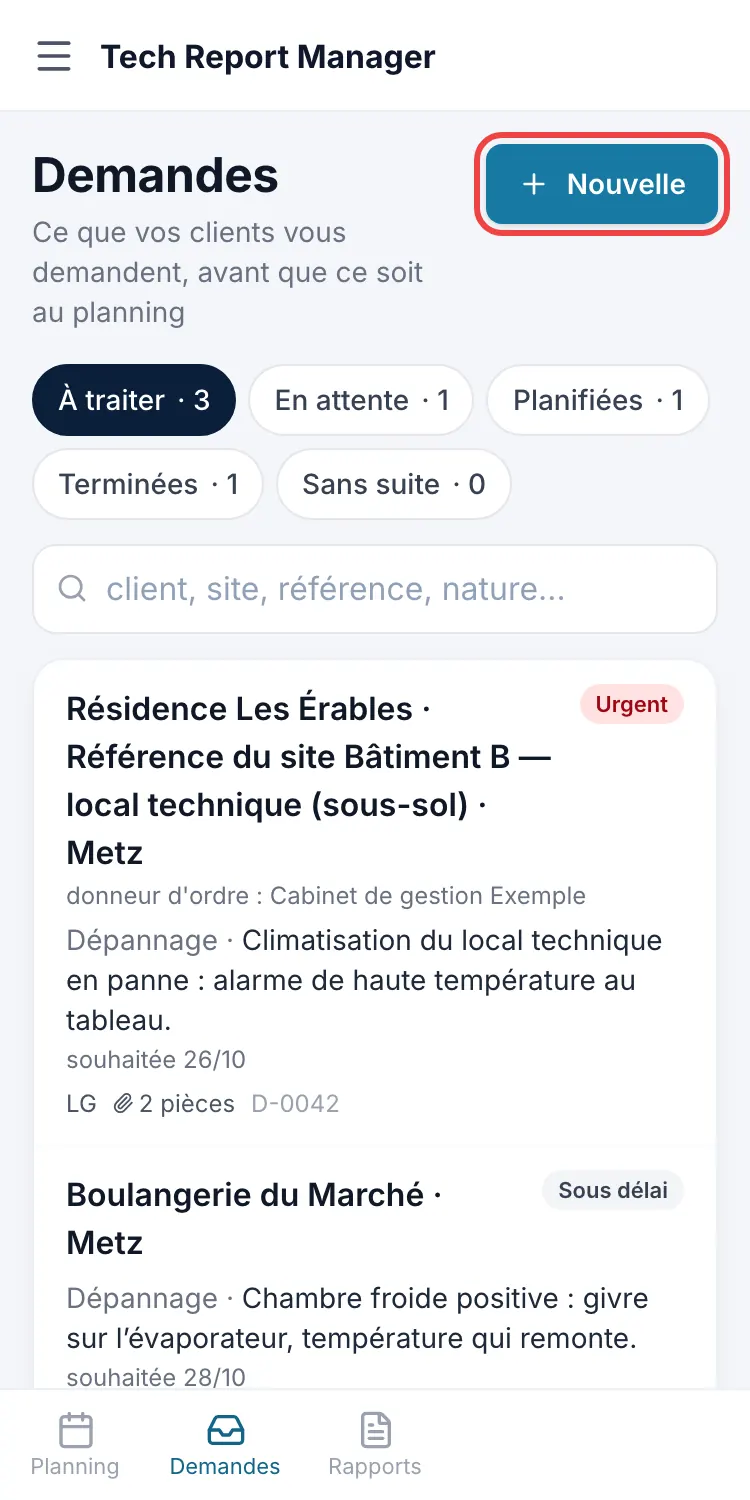
The New request button Fill in the rest if needed: site address, ordering party, Type, Urgency, Suggested tech and attachments (PDF or photos, 5 at most, 25 MB in total). Then tap Save.
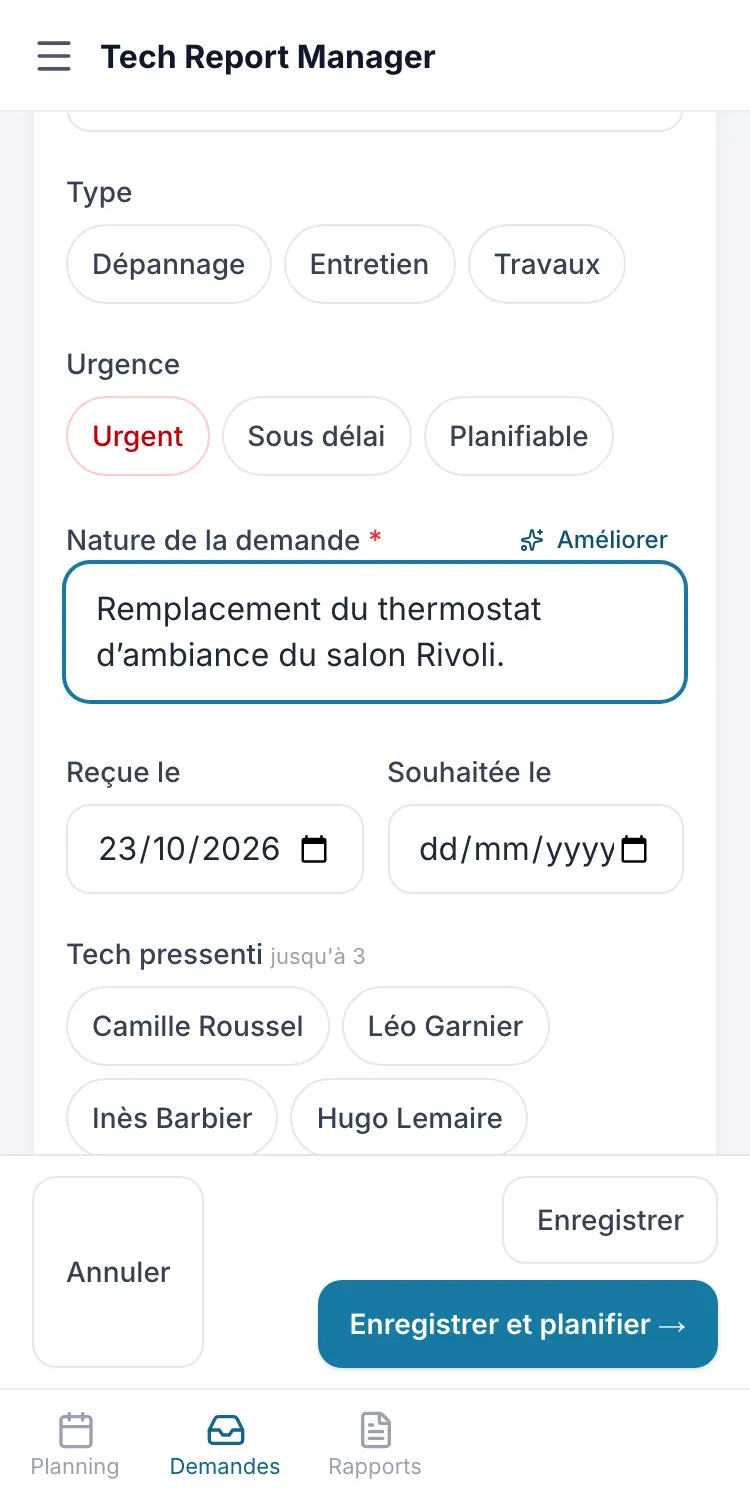
The request form Open the request to follow it up: Schedule, On hold… (short reason, optional follow-up date) or Drop (reason).
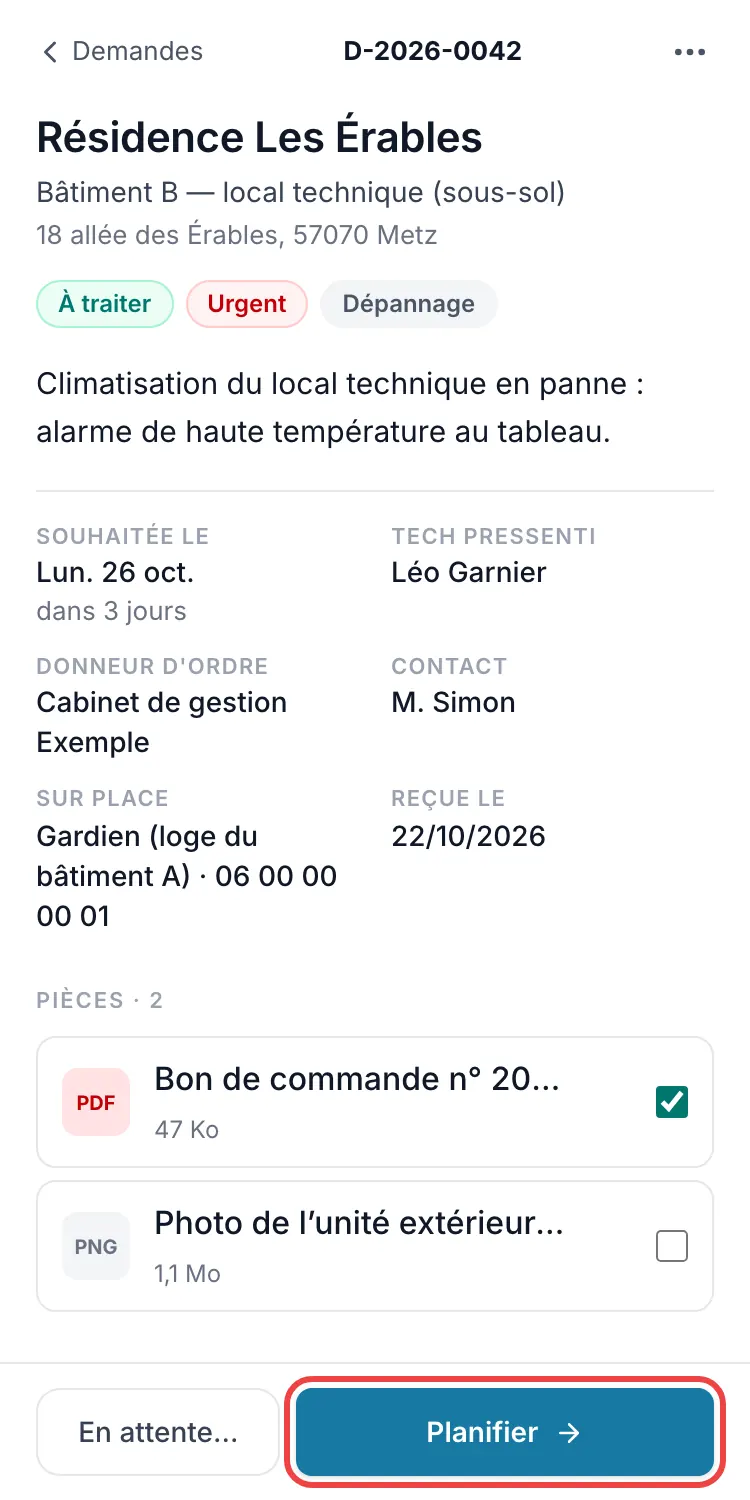
The request details
Good to know
Each request gets a number D-YYYY-NNNN. It switches to Scheduled on its own when its appointment is saved, then to Done when the report is finalised.
Frequently asked questions
Does my technician see requests?
No. The tab is reserved for managers: the technician receives the appointment once it is scheduled, with its documents.
I can't see the Requests tab.
It is off by default: a manager turns it on in Settings, Requests section.
How long is a request kept?
24 months after it is marked Done or Dropped, a period you can change in Settings; it is then deleted along with its attachments.
Can requests received by email be imported?
No: requests are entered in the app, in a few seconds.
Related articles
Need help? Our team answers by email: support@tech-report.fr
Screenshots taken on a phone, in French.