
How do I schedule a request from the To schedule column?
What it is for
The To schedule column of the schedule lists requests marked To do. Scheduling a request means creating its appointment in one move, with everything it carries: client, address, reason, suggested technician, attachments.
Before you start
Step by step
On a computer, open Schedule: the To schedule column appears next to the schedule. Drag a card onto a day and technician cell: the appointment is created straight away, with Undo available for a few seconds.
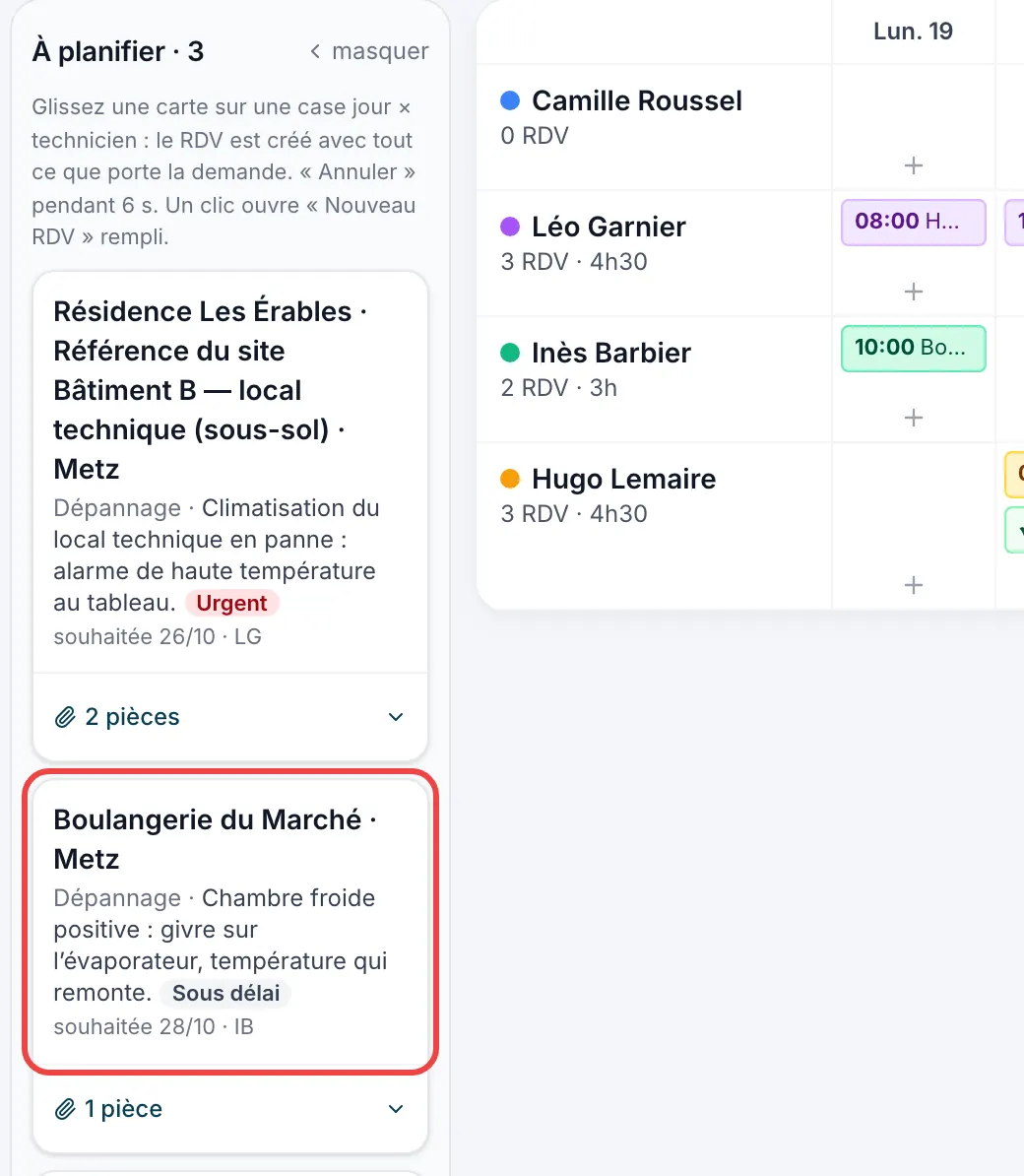
The To schedule column, on a computer Clicking a card, without dragging it, opens New appointment already filled in: check it, then click Schedule.
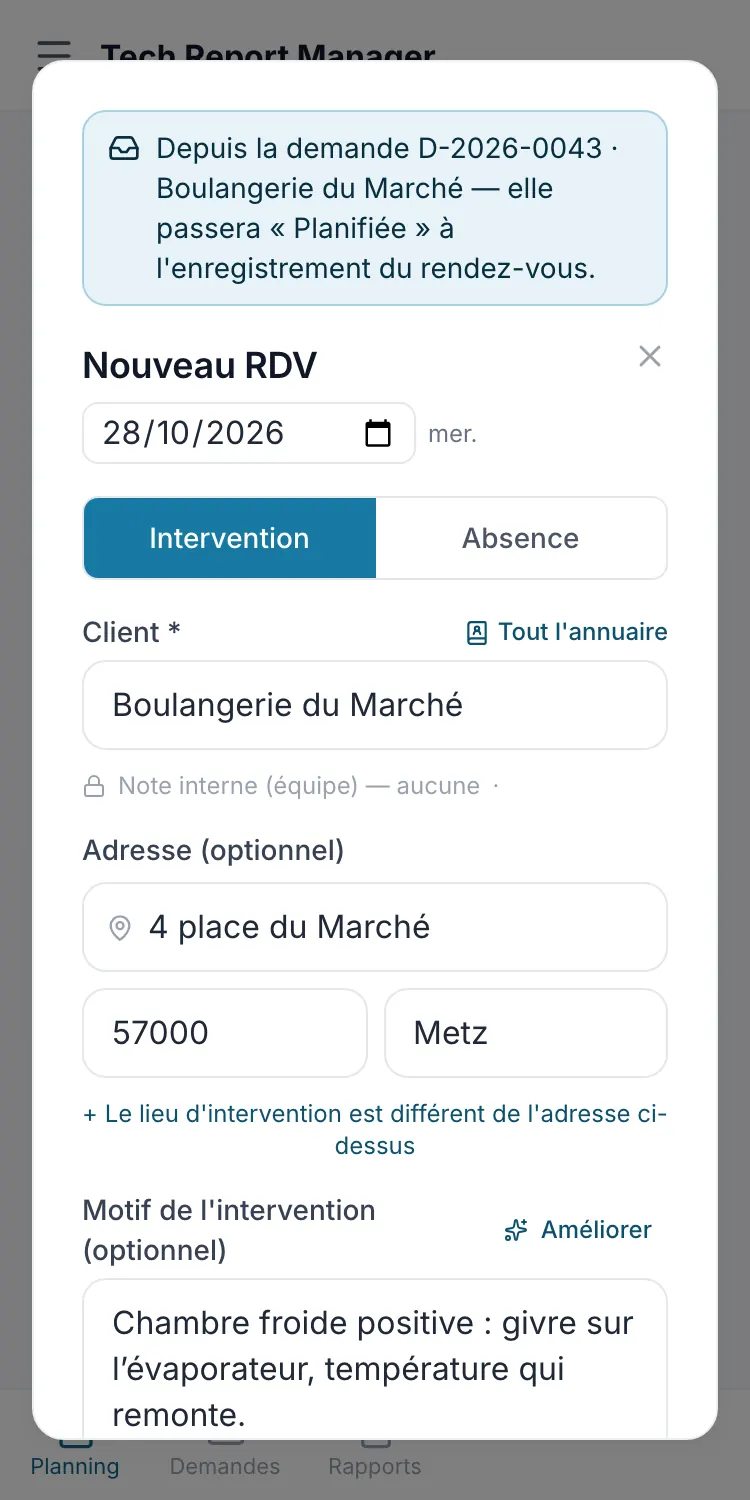
New appointment filled in from the request On a phone, tap the To schedule button next to New appointment, then tap Schedule on the request.
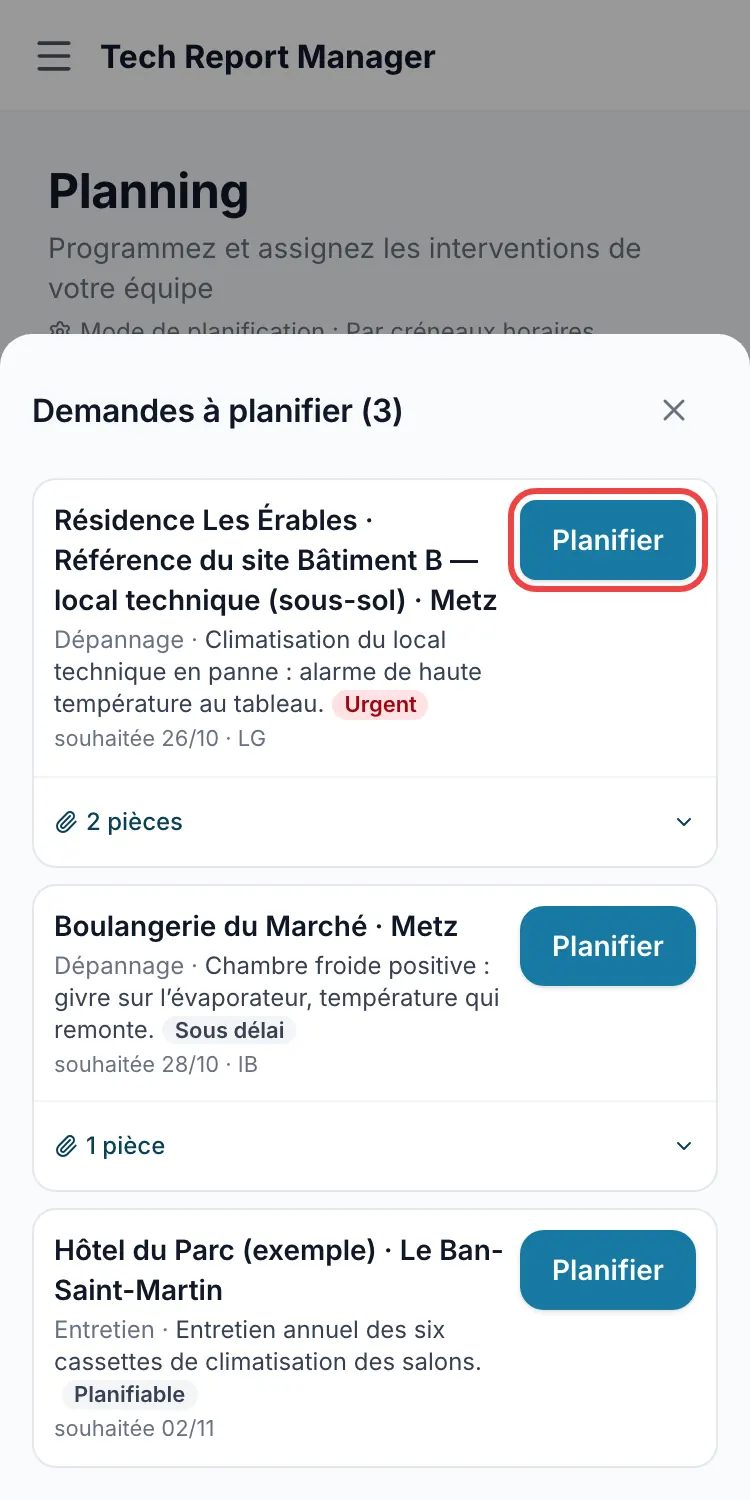
The list on a phone
Good to know
The attachments link on a card (📎) expands their list: Open opens the attachment in a new tab, without scheduling the request.
Frequently asked questions
Is the appointment created at the right time?
In hourly mode, at the time of the slot you dropped it on; in By day mode, for the whole day. A cell with no time opens New appointment filled in, for you to complete.
I dragged the wrong request.
Tap Undo straight away: the request goes back to To do. Later on, delete the appointment from its details: the request also goes back to To do.
Do the request's attachments carry over?
Yes: they are copied onto the appointment, each with its Add at the end of the report box.
Related articles
Need help? Our team answers by email: support@tech-report.fr
Screenshots taken on a phone, in French.