How do I turn on and set up Advanced reports?
What it is for
For trades that take measurements: readings in a table, checklist grids per piece of equipment and limits that tell you straight away whether a value is compliant. The PDF prints the compliance table and your conclusion.
Before you start
Step by step
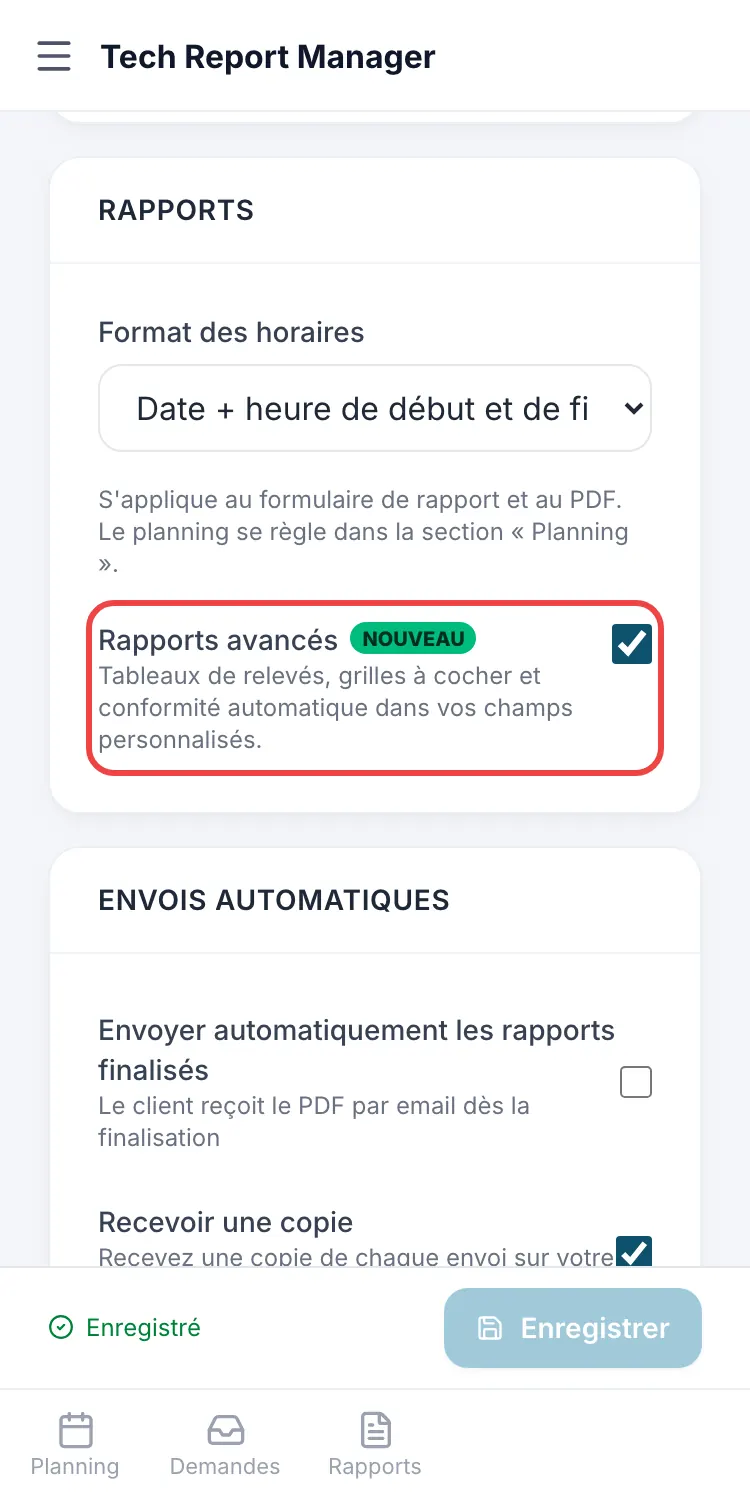
Turn on the option: Settings → Reports section → tick Advanced reports. You can also ask support (support@tech-report.fr), who will turn it on for your company.
The Advanced reports option In Customization → Custom fields, Add a field offers two more types: Table (number, text or list columns, with fixed rows or rows added by the technician) and Checklist grid (items in rows, up to 6 states in columns).
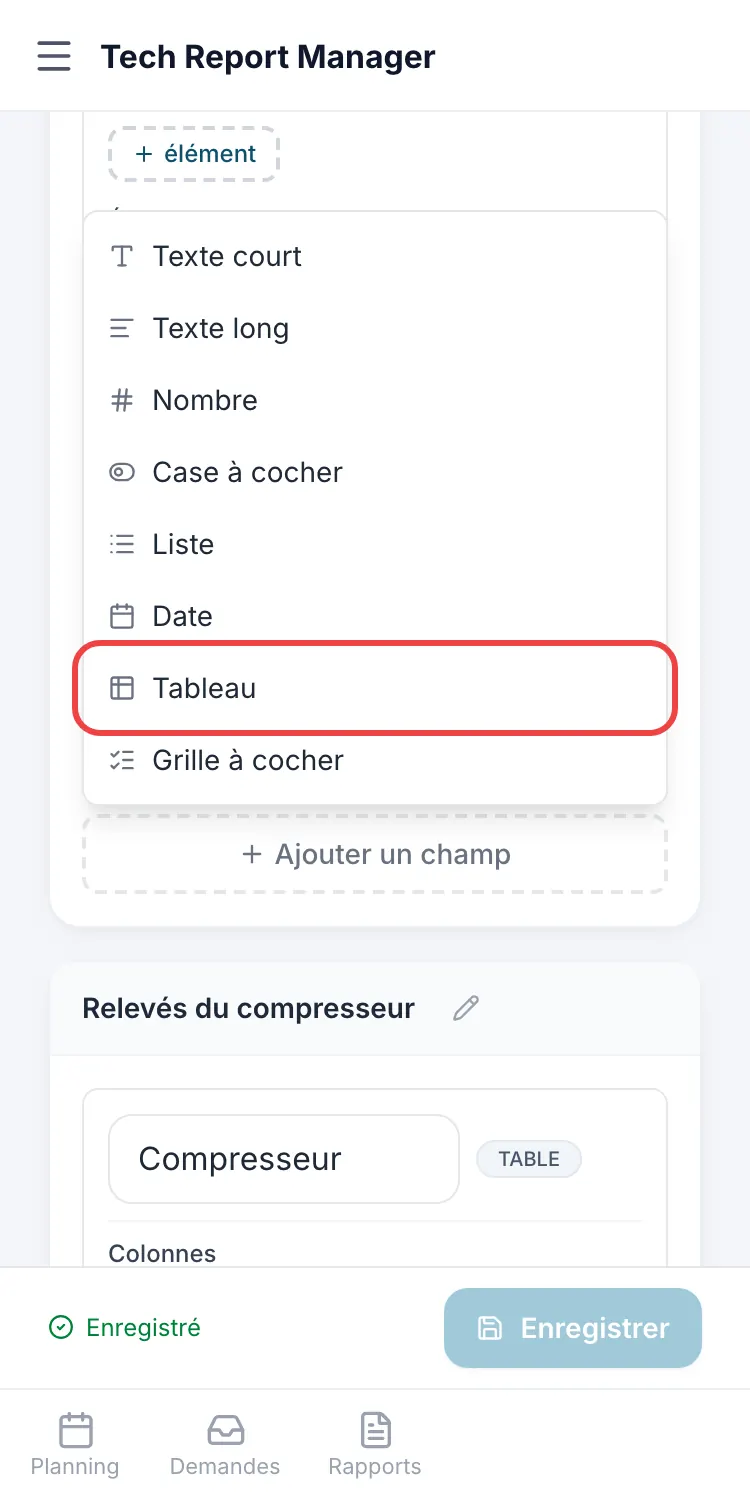
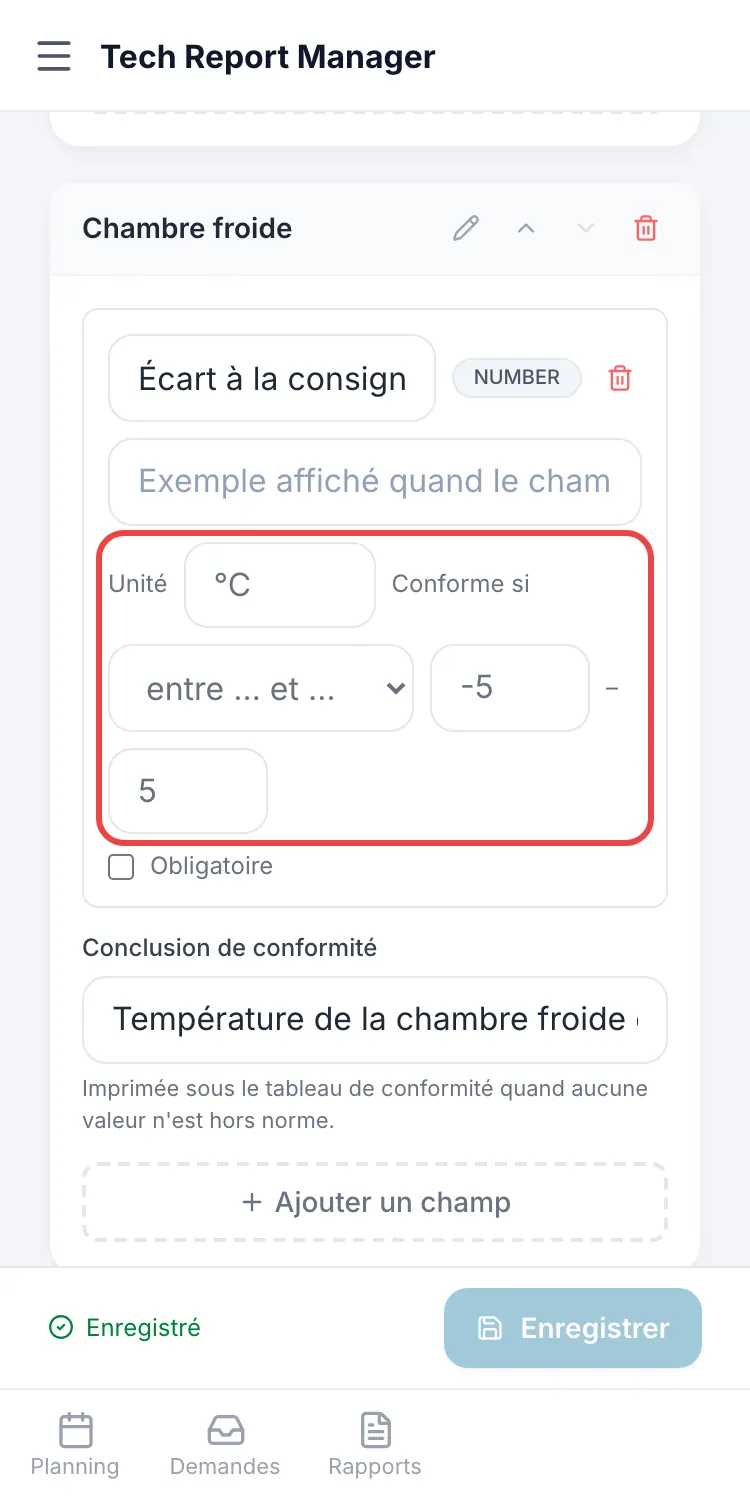
Table and checklist grid On a Number field, fill in the Unit and the Compliant if limit: for example “< 5” (CO in ppm) or “between -5 and 5” (deviation in °C). A half-filled limit is not applied.
Unit and limit of a reading On site, the ✓ compliant, ⚠ close to the limit or ✗ non-compliant badge appears under each reading as soon as it is entered.
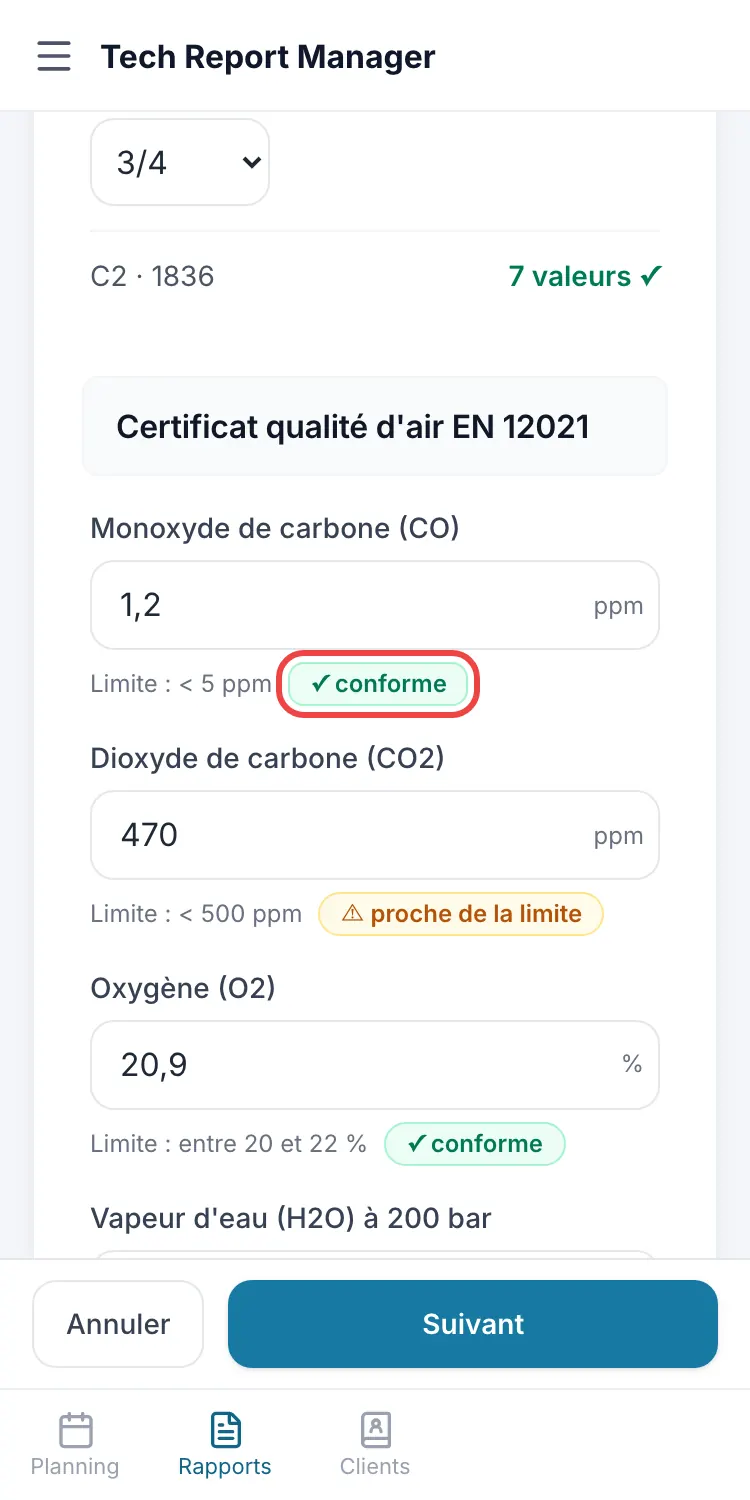
Compliance as soon as it is entered
Good to know
Fill in the section's Compliance conclusion: it is printed under the compliance table when no value is non-compliant.
Frequently asked questions
What does the client see on the PDF?
Your tables and grids (only the ticked items), then a compliance table: reading, value, limit, verdict. A value close to the limit counts as compliant on paper.
If I turn the option off, do I lose my fields?
No: the option only controls creating them. Fields already created are still filled in and printed.
Can I put a limit on a list or a text field?
No: compliance is only calculated on a number.
How do I enter a negative value on an iPhone?
A reading whose limit allows a negative value opens the text keyboard, which has the minus sign.
Related articles
Need help? Our team answers by email: support@tech-report.fr
Screenshots taken on a phone, in French.